
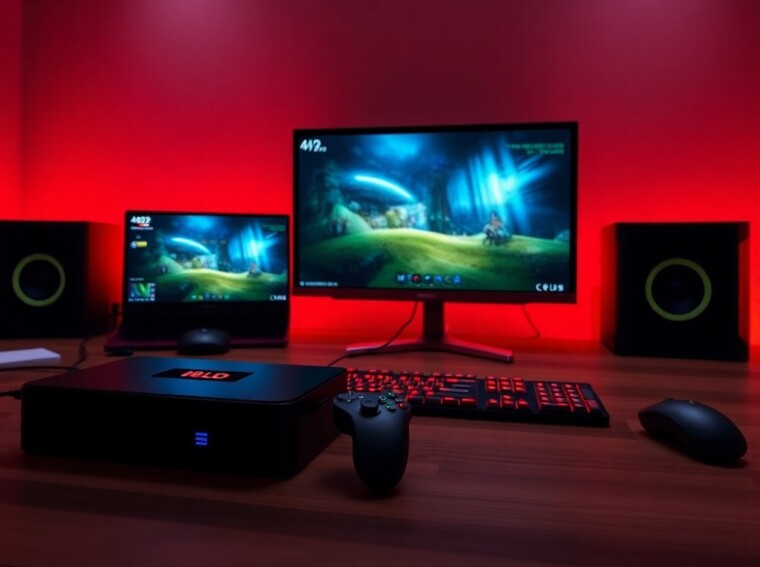
Gaming PlugBox Linux installs quickly and boots a gaming-ready desktop. The image combines Steam Proton, drivers, and controller tools. A user downloads the ISO, writes it to USB, and boots any compatible PC. The guide explains what Gaming PlugBox Linux does, how to install it, and how to test controllers and games. It keeps steps direct and clear so a user finishes setup fast.
Key Takeaways
- Gaming PlugBox Linux offers a lightweight, fast-install Linux distribution tailored for gaming with pre-installed Steam Proton and controller tools.
- The setup process is straightforward: download the ISO, write it to USB, and boot any compatible PC for quick installation or live testing.
- This distribution supports recent AMD, NVIDIA, and Intel GPUs and provides extensive controller compatibility with customizable mappings and battery monitoring.
- Gaming PlugBox Linux delivers smooth performance with a tuned kernel, easy Proton version switching, and native Linux game support out of the box.
- Built-in troubleshooting tools and automatic updates simplify fixing common gaming, driver, and controller issues, ensuring reliable gameplay experience.
- Optimizations like performance mode, frame pacing, and SSD game library placement enhance gaming performance and reduce load times.
What Is Gaming PlugBox Linux And Why Use It
Gaming PlugBox Linux is a lightweight Linux distribution for play. It includes a curated kernel, graphics drivers, Proton for Windows games, and controller mapping tools. A user chooses it to avoid long setup and driver hunting. The image boots to a launcher that lists installed game clients and tools. It updates core components automatically and keeps user settings separate from the system image.
They find value in fast setup and predictable performance. The distribution focuses on common GPU vendors and modern controllers. It supports common file formats for game libraries and offers an easy rollback option. A user can run older Windows games or native Linux titles with minimal tweaking. Gaming PlugBox Linux aims to make play work out of the box on a broad range of PCs.
Quick Setup: Download, Install, And Boot In Minutes
A user downloads the latest Gaming PlugBox Linux ISO from the official page. They verify the checksum to ensure file integrity. They write the image to a USB stick with a simple tool such as BalenaEtcher or Rufus. They set the PC to boot from USB in the firmware menu and they choose the PlugBox boot entry.
The installer offers two modes: live test and full install. A user can test games in live mode without changing the hard drive. Full install copies the image and creates a small home partition for settings. The process takes about 10–20 minutes on modern hardware. After the first boot the system updates drivers and prompts the user to sign into game clients.
Checking Hardware Compatibility And Peripherals
A user checks GPU, CPU, and free storage before install. Gaming PlugBox Linux supports recent AMD and NVIDIA GPUs and most Intel graphics. A user verifies controller compatibility by connecting common gamepads. USB keyboards, mice, and headsets usually work immediately. Wireless controllers sometimes require a short pairing step or a firmware update. The system lists detected devices in a simple settings panel. If a device fails, the panel suggests a basic fix such as replugging, switching USB ports, or updating firmware.
Performance, Game Compatibility, And Controller Support
Gaming PlugBox Linux uses a tuned kernel and current Mesa or proprietary drivers to get strong frame rates. The distro applies sensible defaults for power and scheduler settings. A user sees smooth gameplay on supported GPUs with minimal configuration. Proton supports many Windows titles. The distribution ships a tested Proton version and offers a simple option to try newer Proton builds.
They can install native Linux games from stores or run Windows games through Steam Proton. The compatibility list covers Triple-A and indie titles that other distributions often require more work to run. Controller support includes mapped profiles for Xbox, PlayStation, and common wireless pads. A user can customize button maps and save profiles per game. The system shows latency and battery status for wireless controllers and suggests polling or USB modes when needed.
Troubleshooting, Common Fixes, And Optimization Tips
A user first confirms the system is up to date. Many problems resolve after an update. If a game fails to launch the user checks the compatibility log and switches Proton versions. They enable a debug overlay for runtime errors and copy the log to a support forum.
If GPU drivers cause crashes the user tries the alternate driver package included in the installer. They reboot and test again. For controller issues the user reconnects the device, checks battery, and reassigns the mapping profile. They try USB for wireless controller pairing if pairing fails.
For higher frame rates a user lowers in-game settings or enables frame pacing in the system control panel. They set the GPU to a performance mode and enable a compositor toggle that reduces render overhead. A user can also move game libraries to an SSD to reduce load times.
If a user needs help they open the built-in troubleshooting app. The app runs diagnostics, collects logs, and offers one-click fixes for common problems. It links to community guides and to the official issue tracker for deeper bugs.
